How to Use Quick Transactions to Simplify Repetitive Accounting Entries
Learn how to create reusable transaction templates that allow users to post common accounting entries without advanced accounting knowledge.
Step-by-Step Process
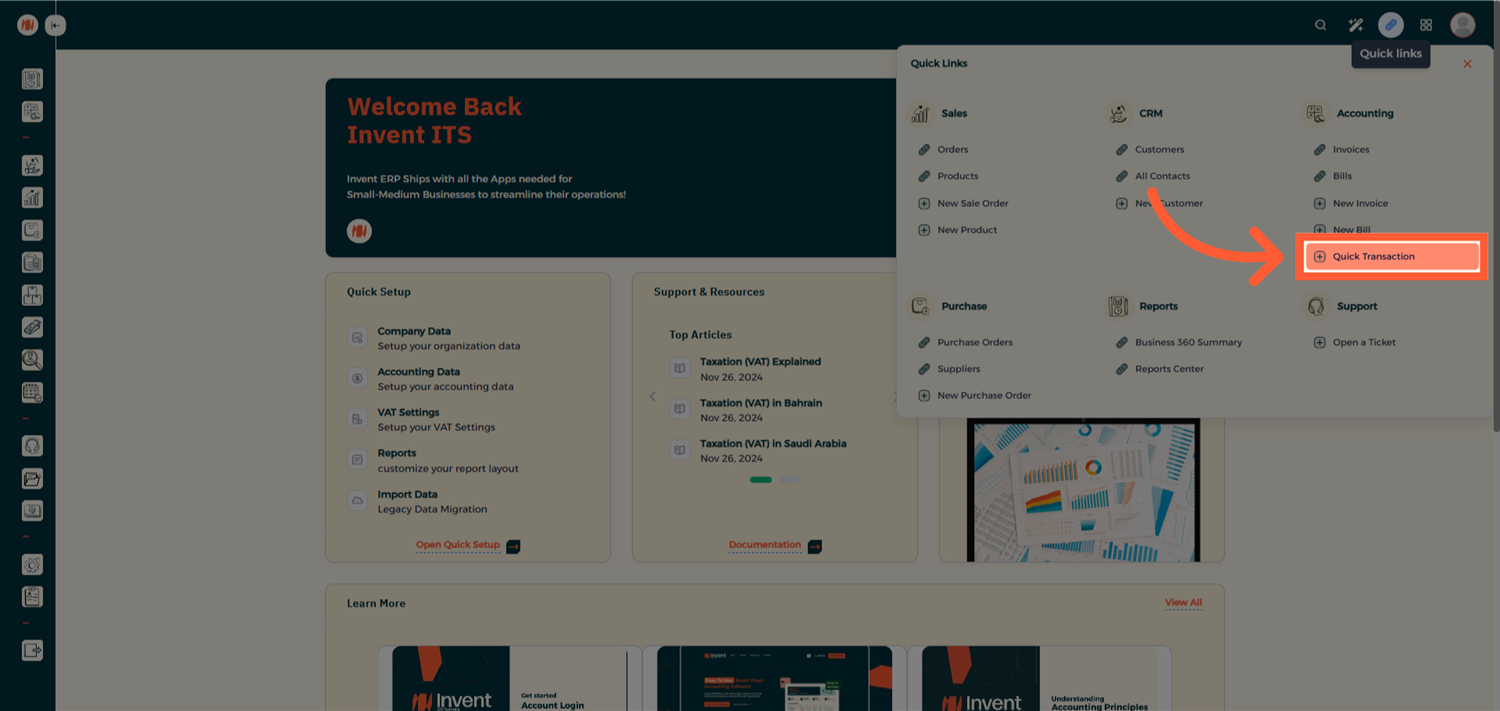
Step 1: Access Quick Transactions
From the Homepage, click Quick Links, then under Accounting select Quick Transactions.
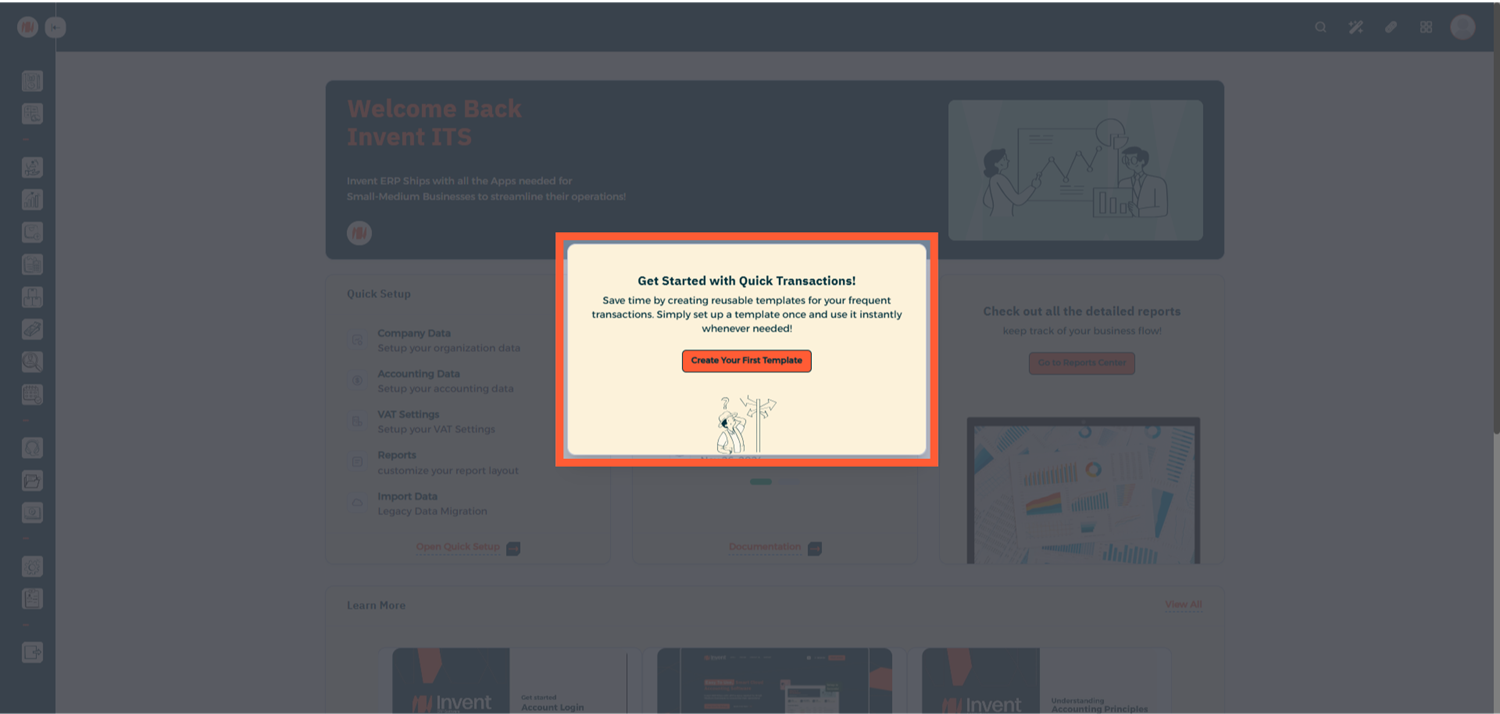
Step 2: Create a Quick Transaction Template
Start by creating a template for the transaction.
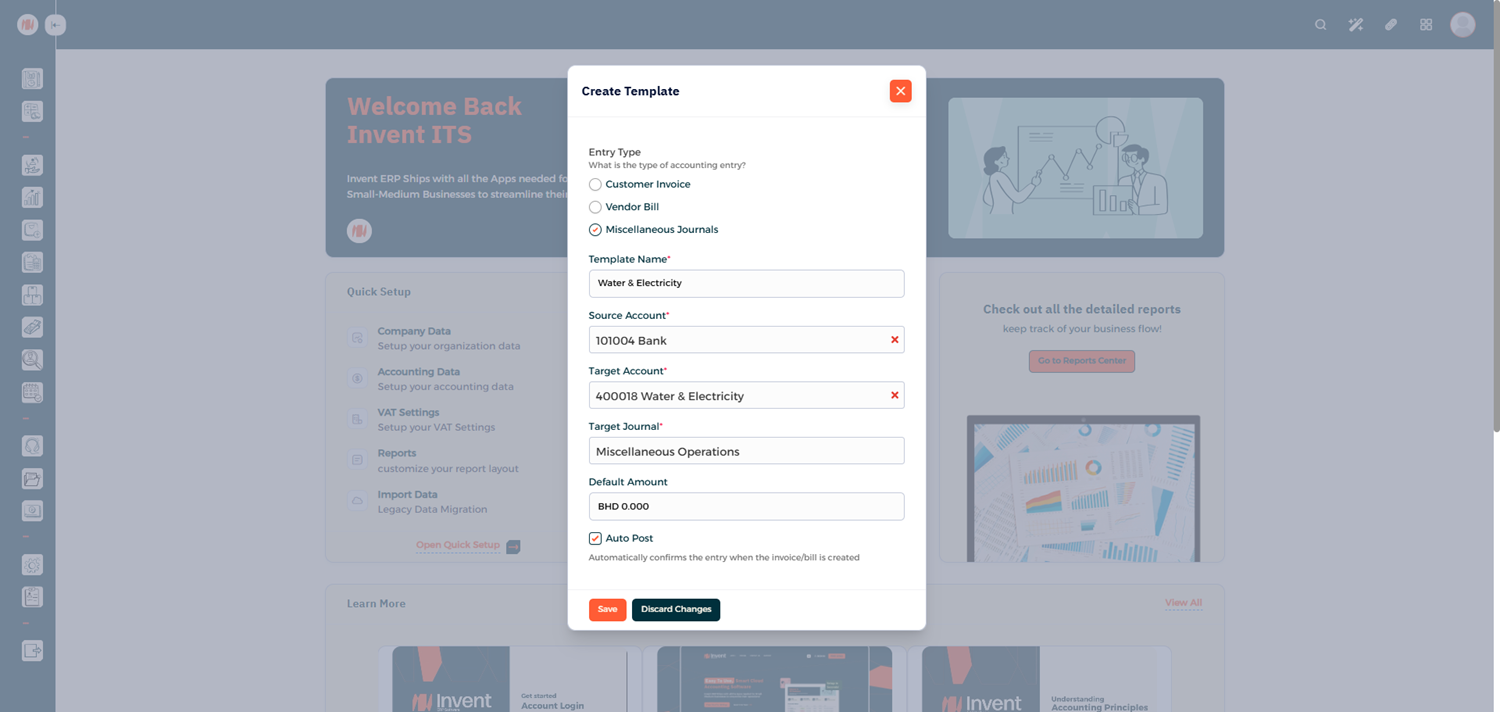
Step 3: Define Template Details
Fill in the template information
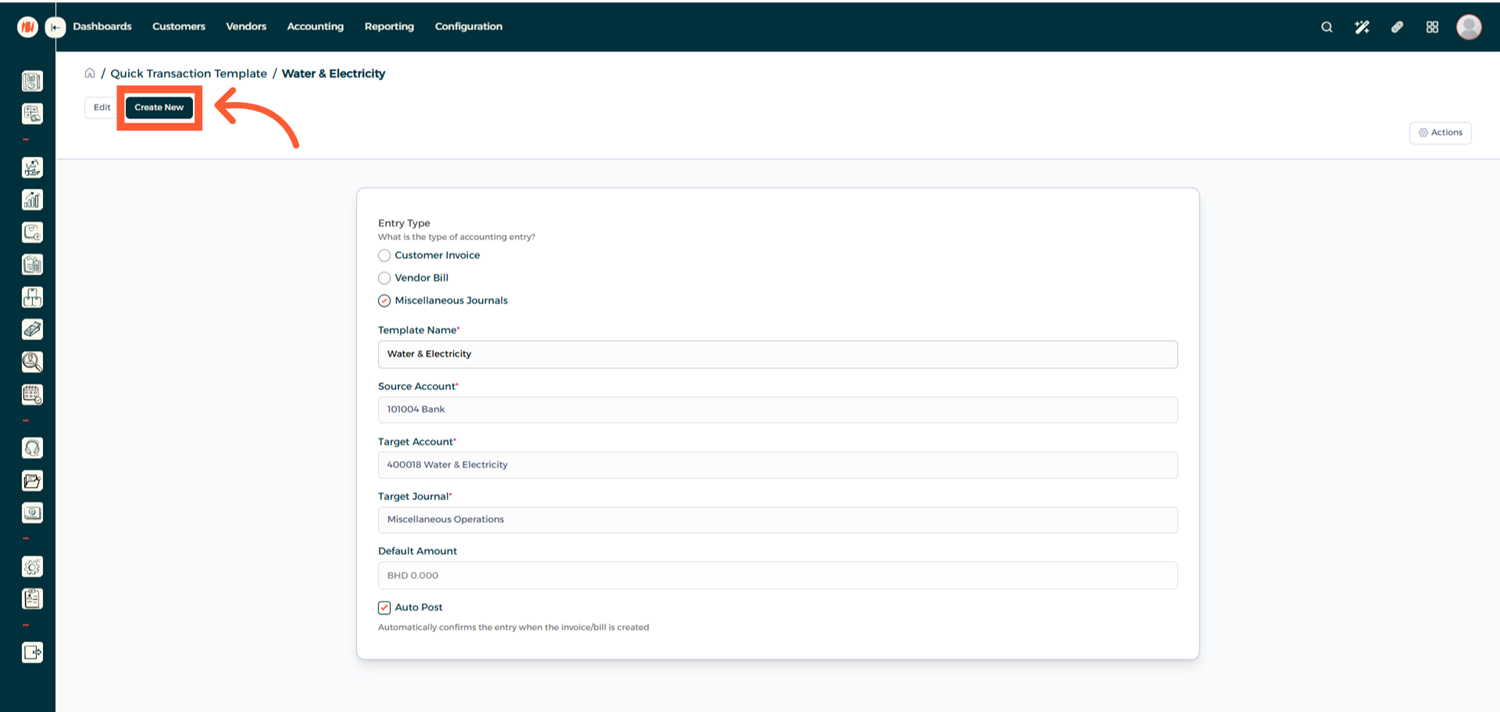
Step 4: Create Additional Templates (Optional)
If you need more templates, click Create New and repeat the same steps.
Step 5: Create a Quick Transaction
Now it's time to use the template, repeat the steps from Step 1 and choose your template
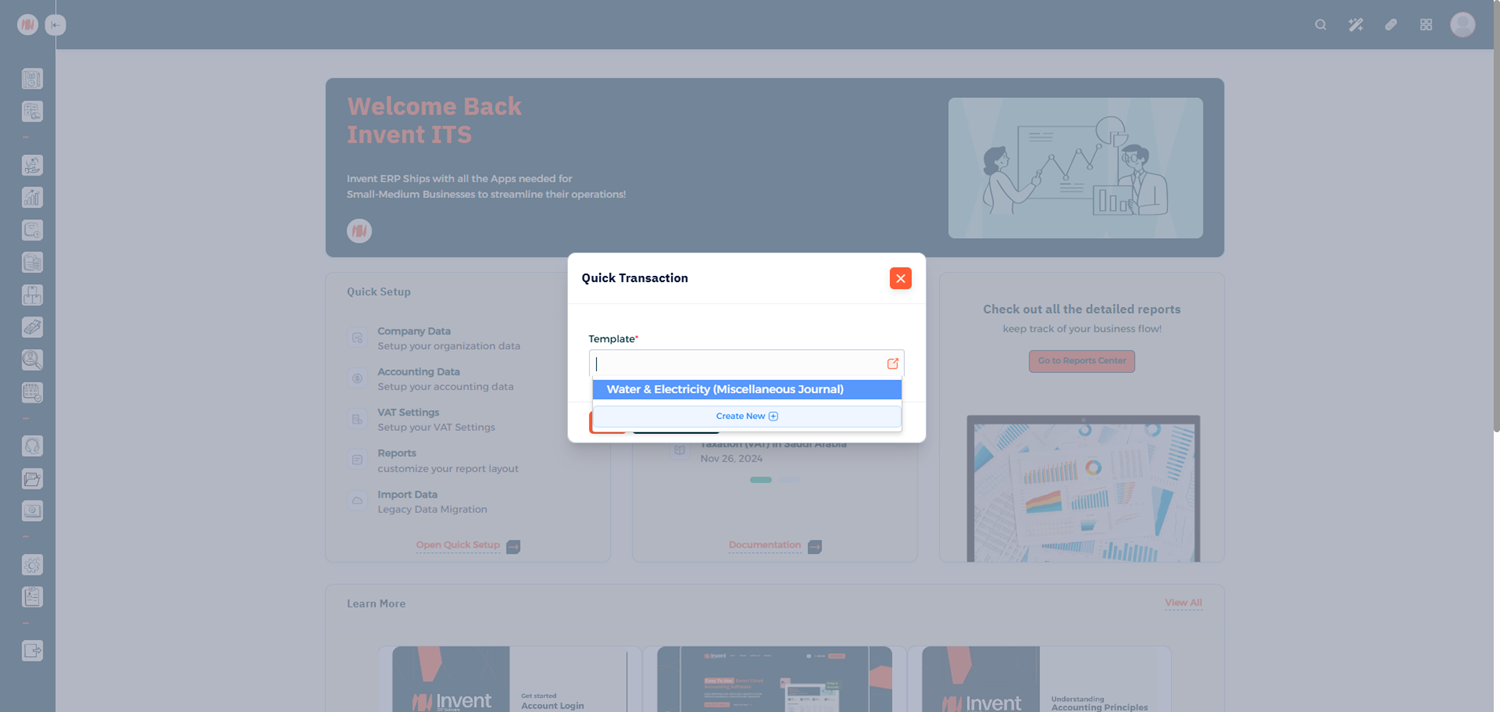
Step 6: Enter Transaction Details
Enter your Transaction Amount and Save
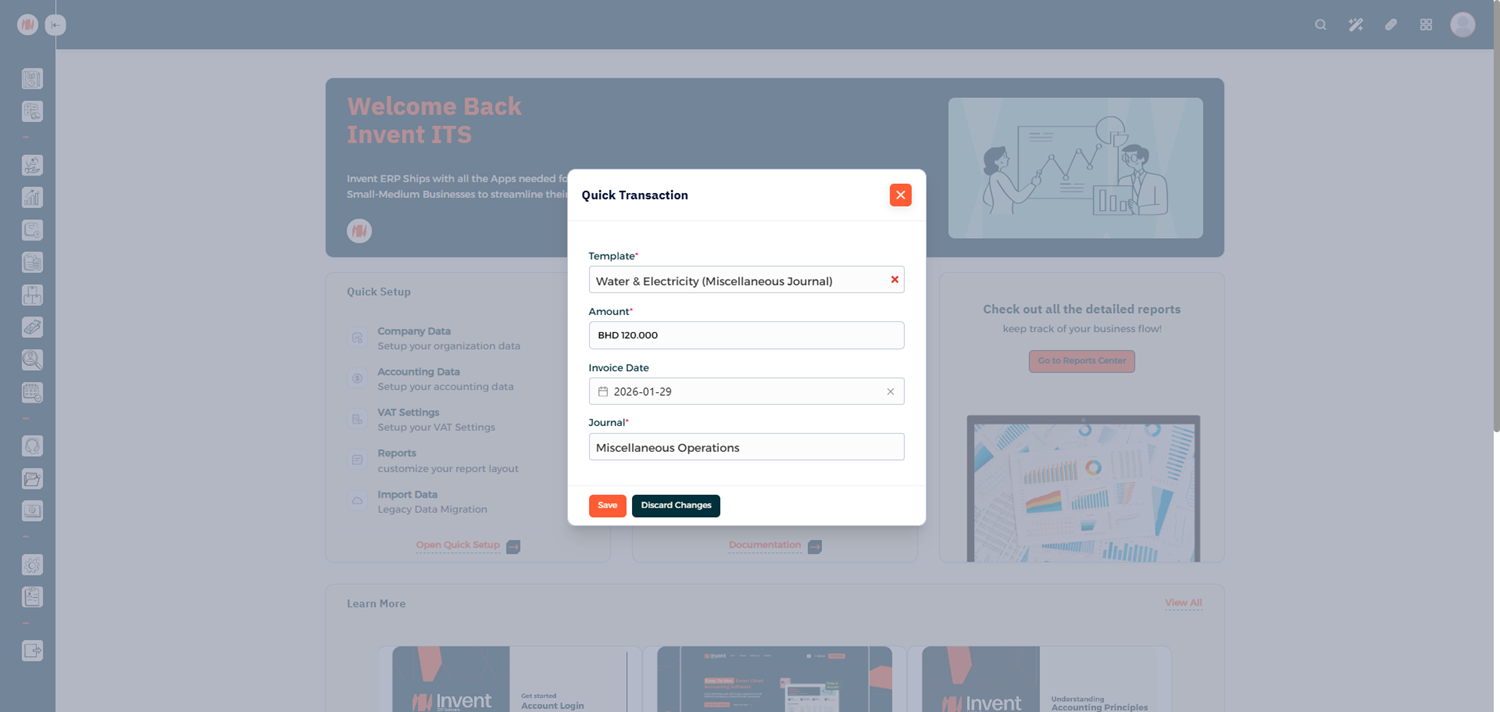
Step 7: Review the Transaction in Reports
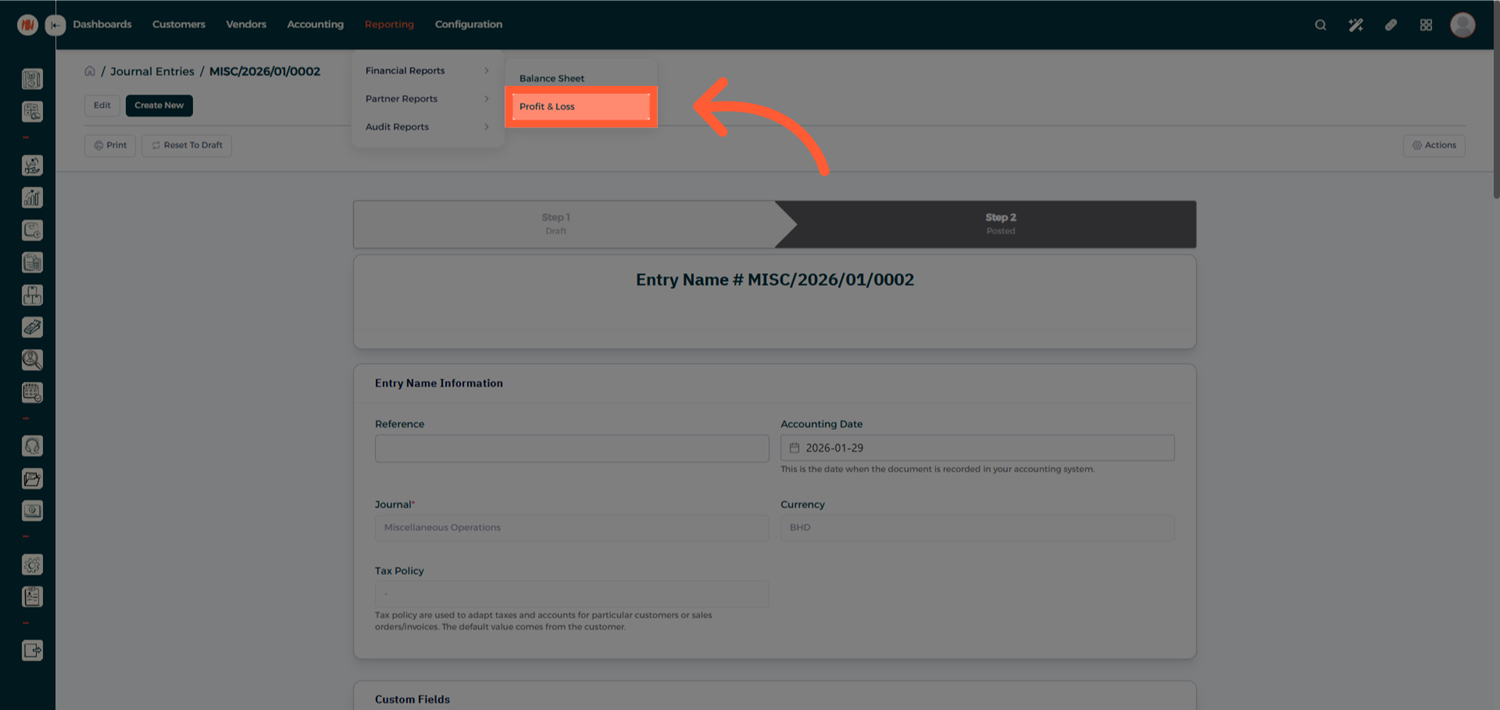
To see how the transaction affects your financials:
- Head to Reporting.
- Open Profit and Loss.
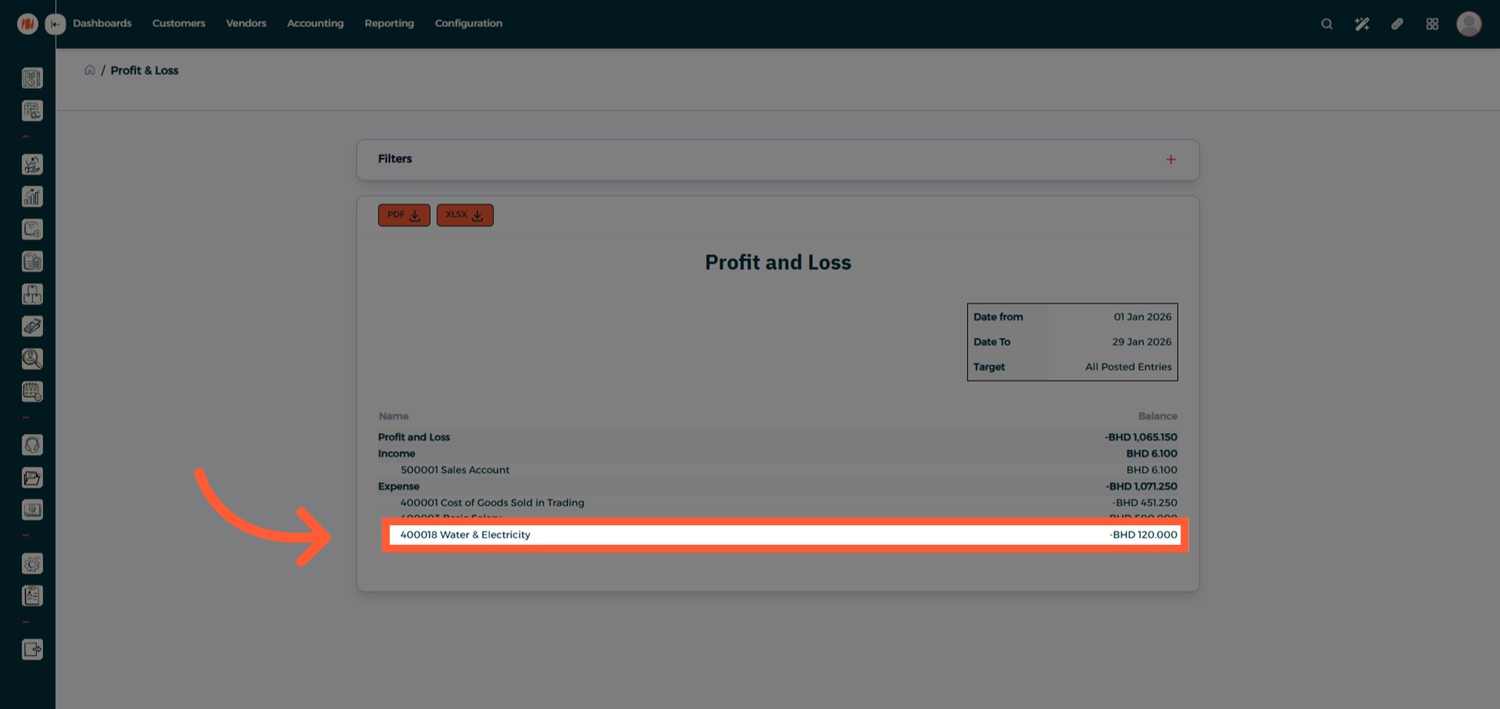
- Under Expenses, find your Quick Transaction reflected instantly.
Notes & Tips
- Use Quick Transactions for recurring expenses, internal transfers, or routine accounting entries.
- Setting a default amount helps speed up posting for fixed-value transactions.
- Auto Post is ideal when Quick Transactions are linked to invoices or vendor bills.
FAQ
Q: Can I edit a Quick Transaction template after creating it? Yes. Templates can be edited at any time.
Q: Are Quick Transactions reflected immediately in reports? Yes. Once posted, they appear instantly in financial reports such as Profit and Loss.
Q: Can I create multiple templates for different transaction types? Yes, you can create as many Quick Transaction templates as needed for different accounting scenarios