How to Add ZATCA-Compliant Customers in Invent ERP?
Before creating invoices in Saudi Arabia, ensure that your customer records are properly configured in accordance with ZATCA e-invoicing requirements. Invent ERP allows you to easily add both individual customers and companies, while ensuring that all required information is included so your invoices can be successfully accepted by ZATCA.
Step-by-Step Process
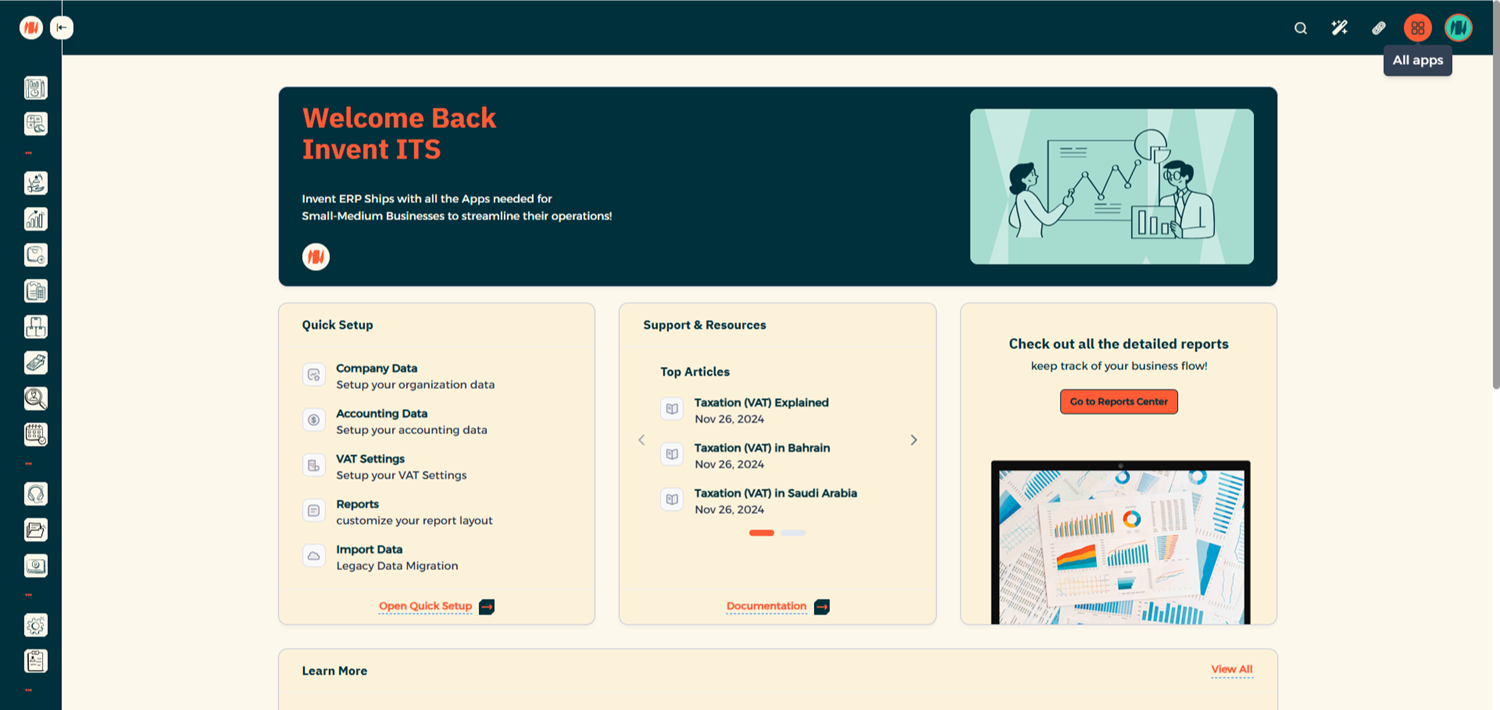
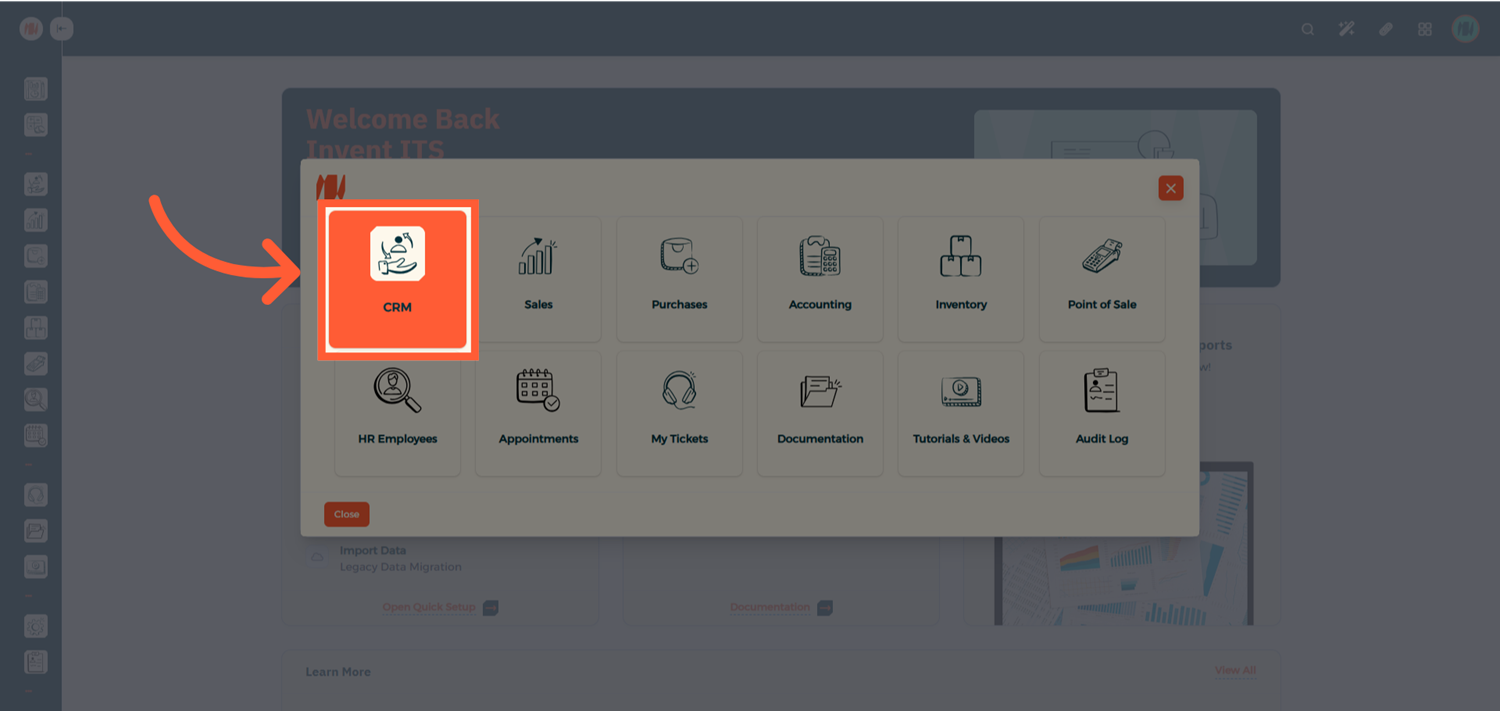
Step 1: Open the CRM Module
From All Apps
Navigate to CRM
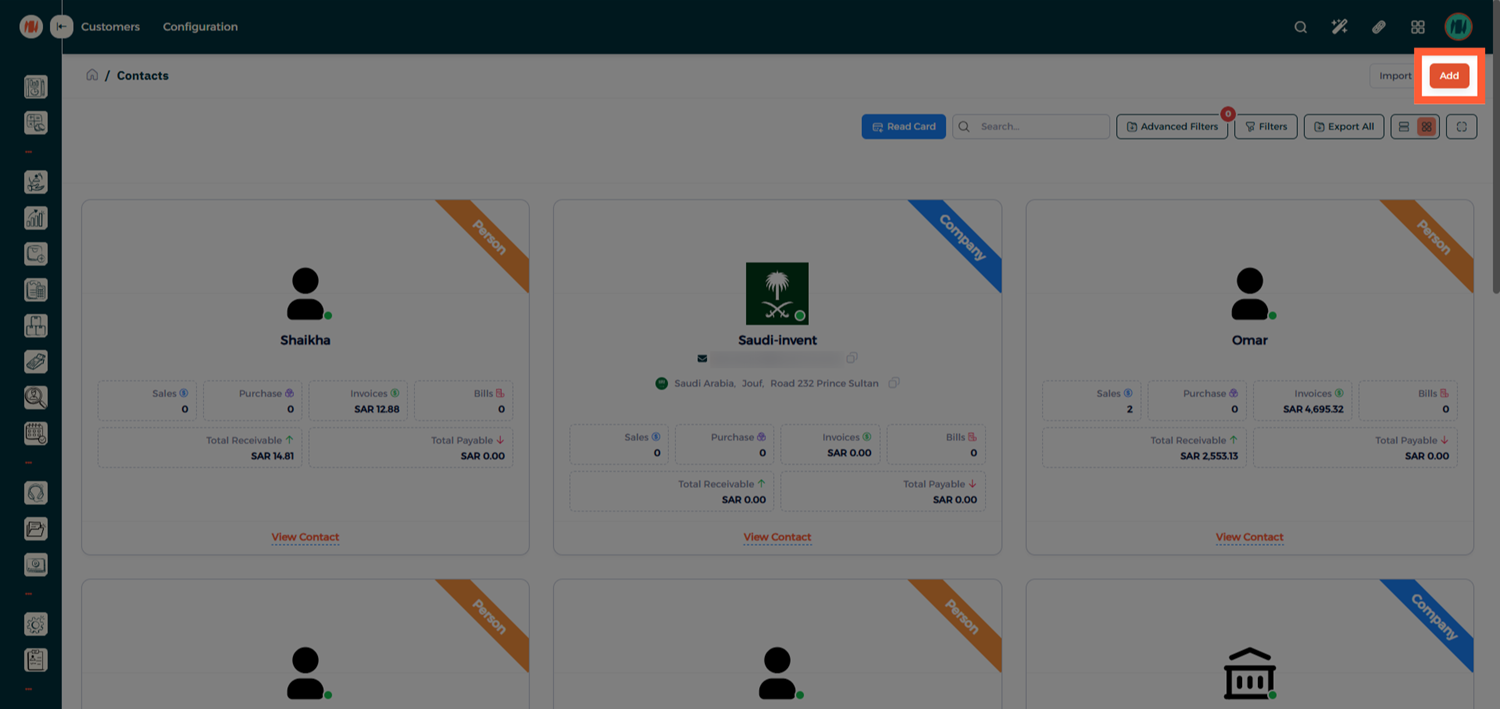
Step 2: Create a New Customer
From the Customers List, click Add to add a new customer
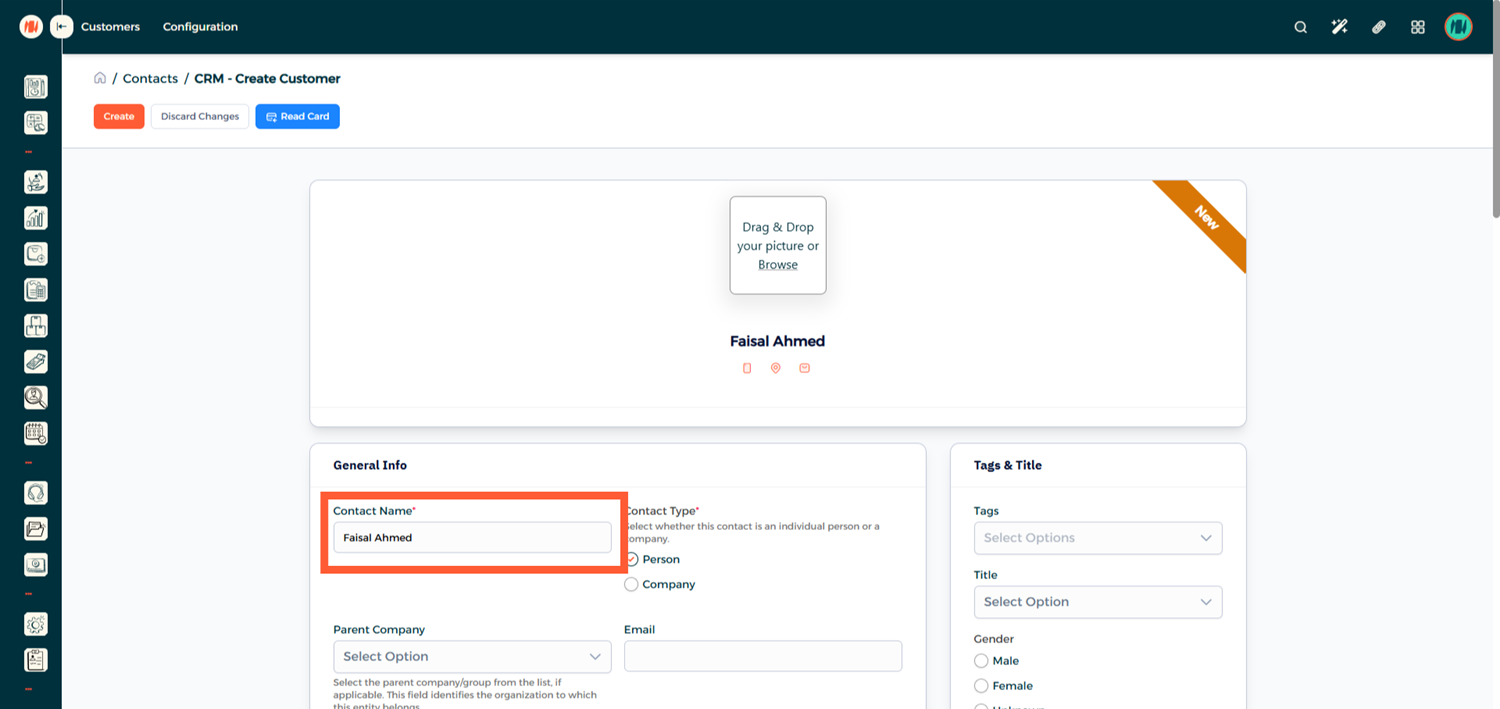
Step 3: Adding an Individual Customer
When adding an Individual Customer (Person), the most important requirement for ZATCA compliance is ensuring that the customer’s full and accurate name is entered
Step 4: Adding a Company Customer
When adding a Company, additional details are required to ensure the invoice is accepted by ZATCA.
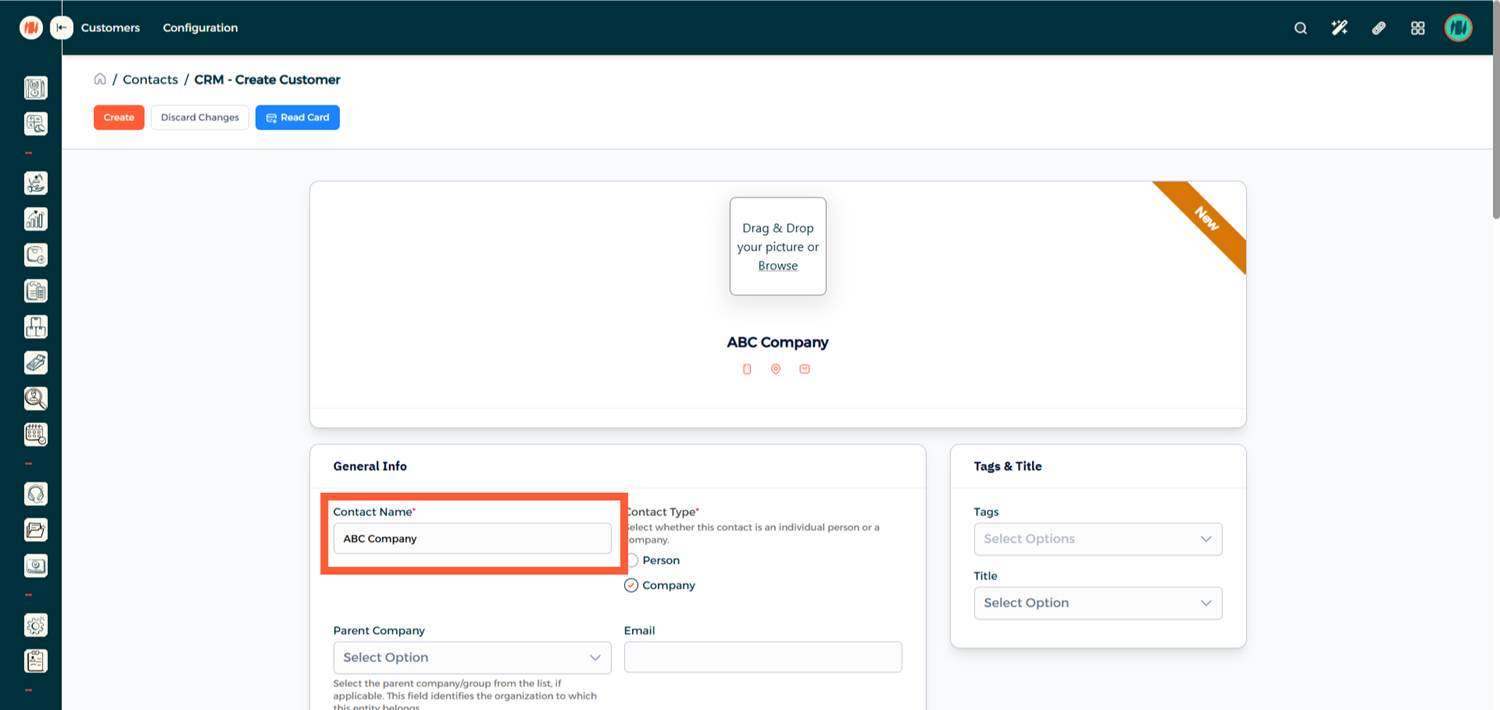
Enter the Official Company Name
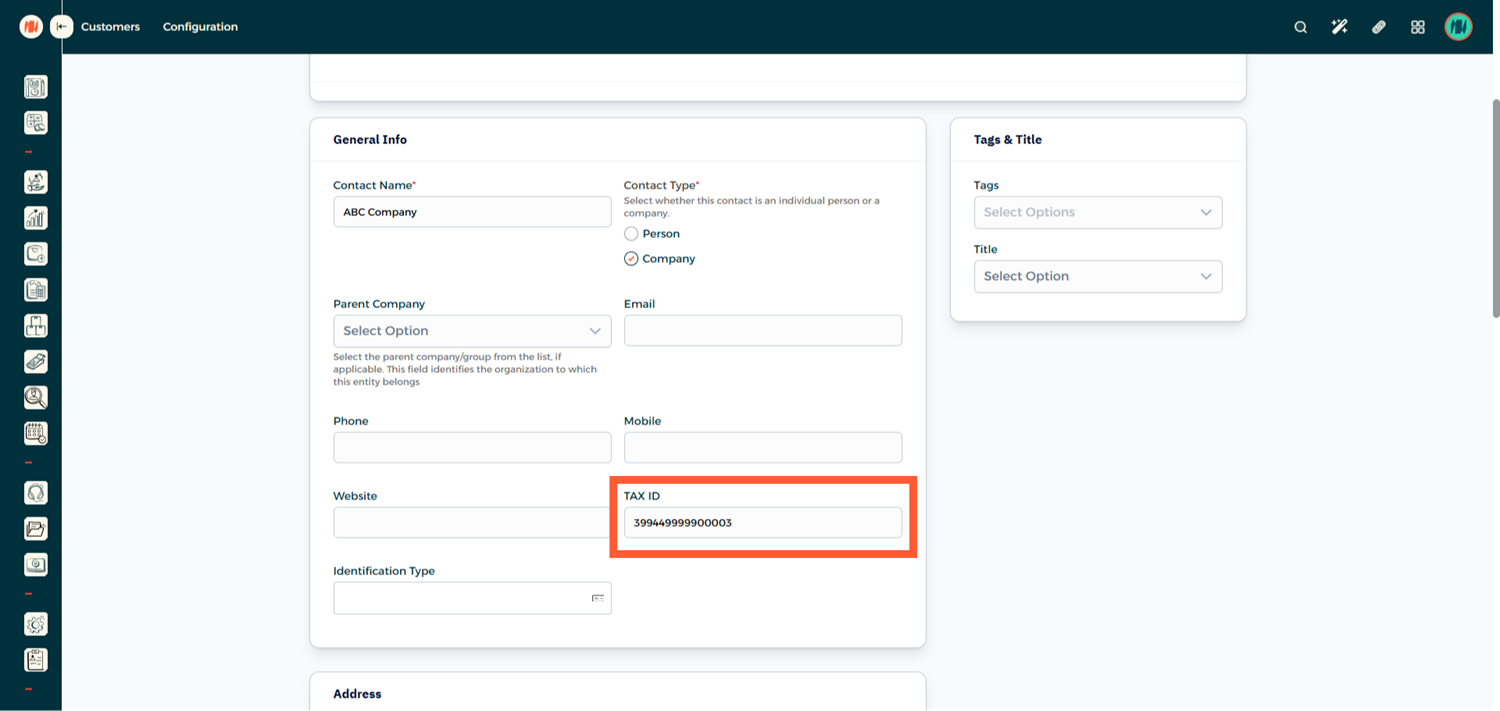
Add the company’s Tax Identification Number
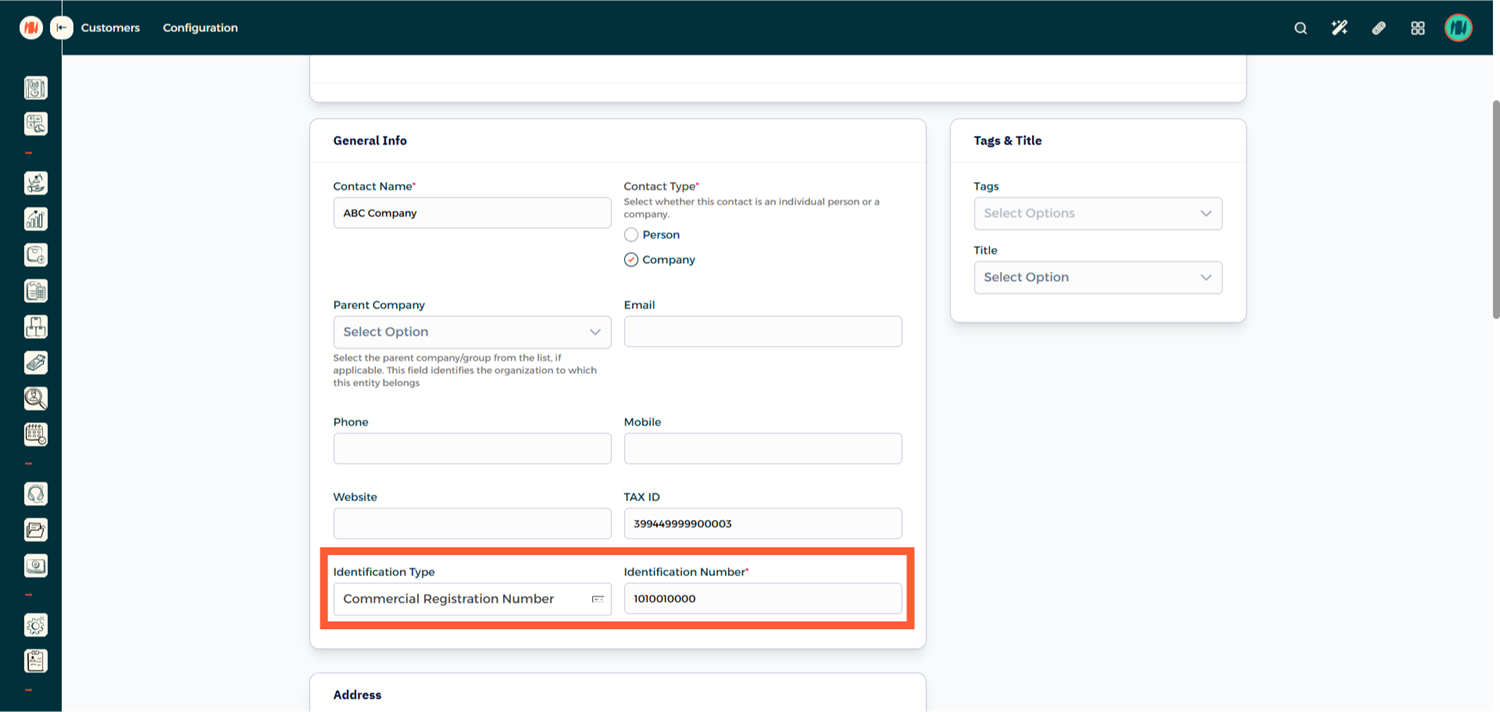
In the Identification Type select Commercial Registration Number and enter the company’s CR Number in the Identification Number field.
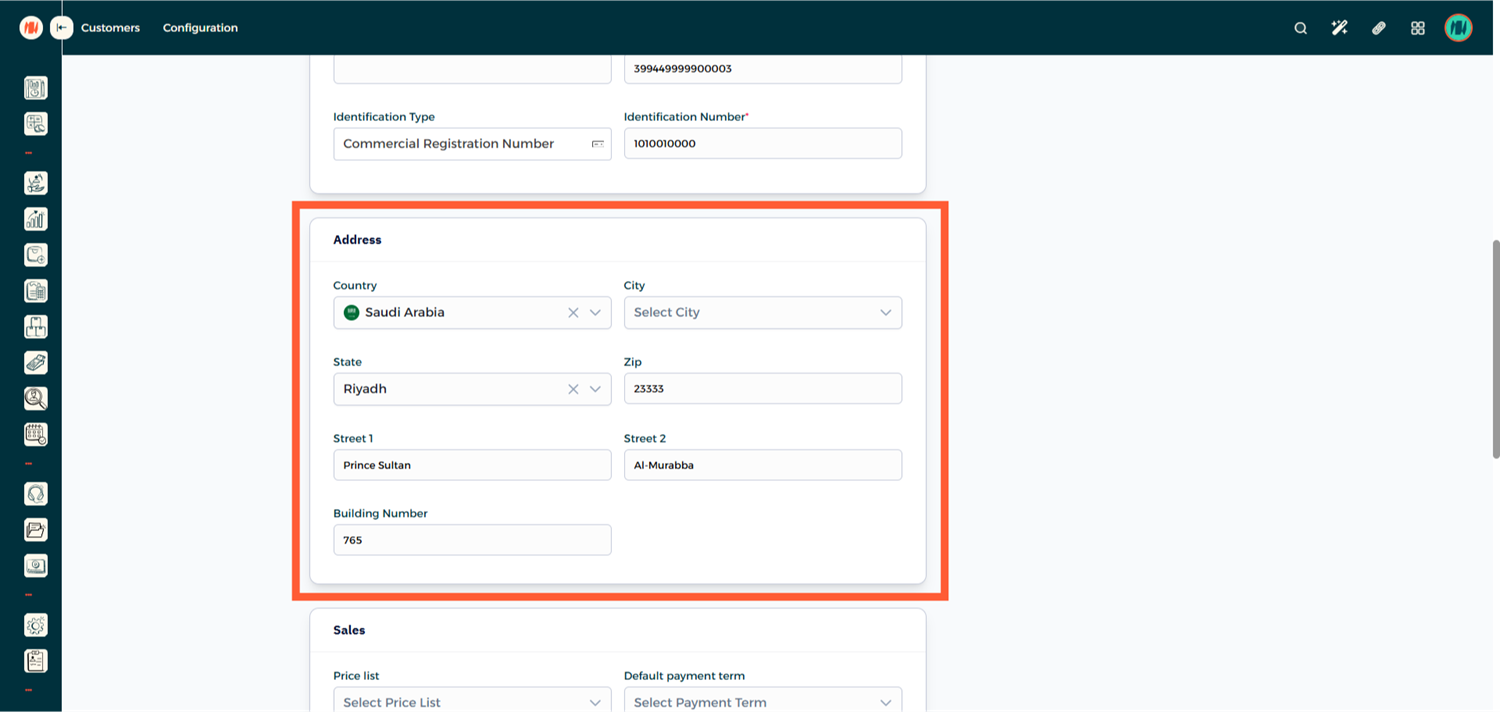
The company address must be entered accurately and completely. Make sure to include the following details:
- Country
- State / Region
- ZIP Code (Postal Code)
- Street 1
- Street 2 (District Name)
- Building Number
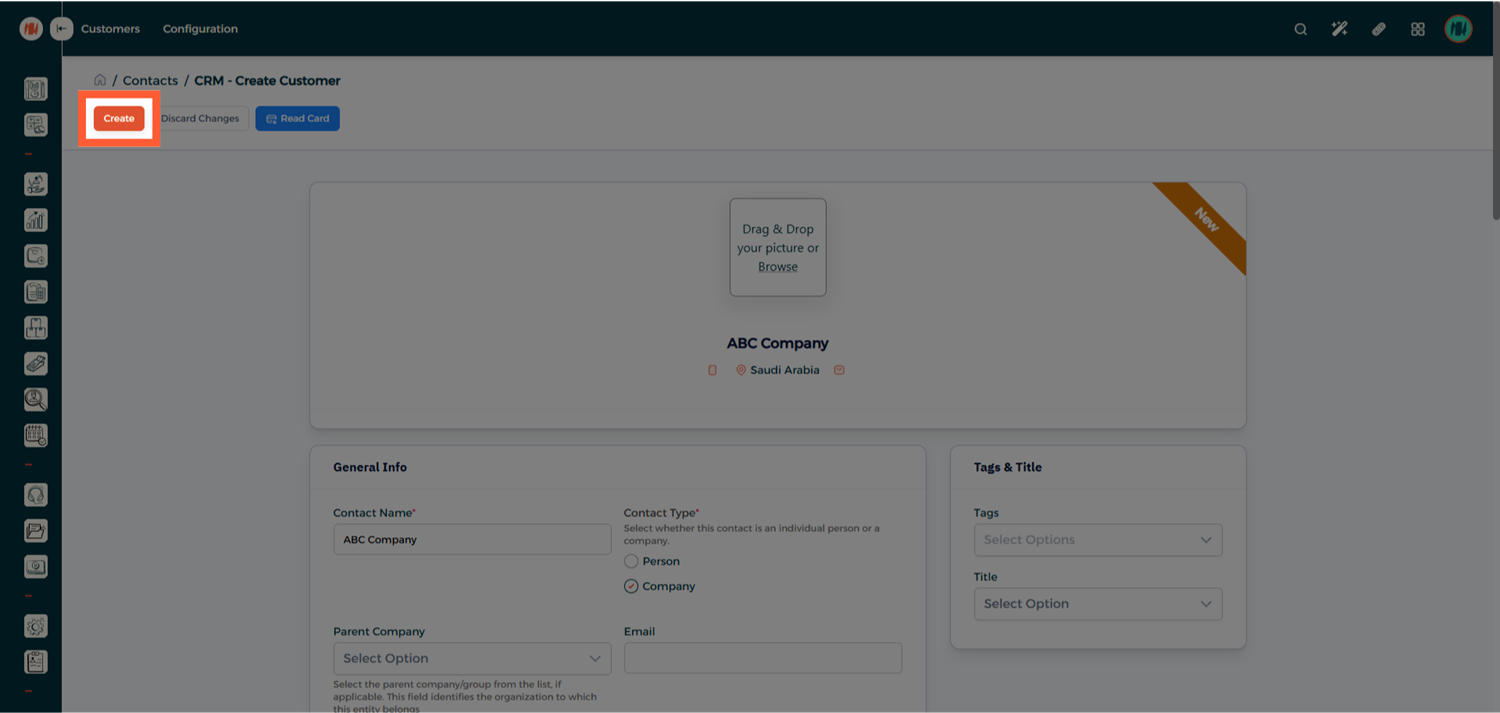
Step 5: Save the Customer
Once all the required information has been entered, click Create to save the customer record.
Notes & Tips
- Always enter the official company name exactly as registered.
- A complete address is required for company customers.
- Individual customers generally require fewer fields, but their name must always be accurate.